
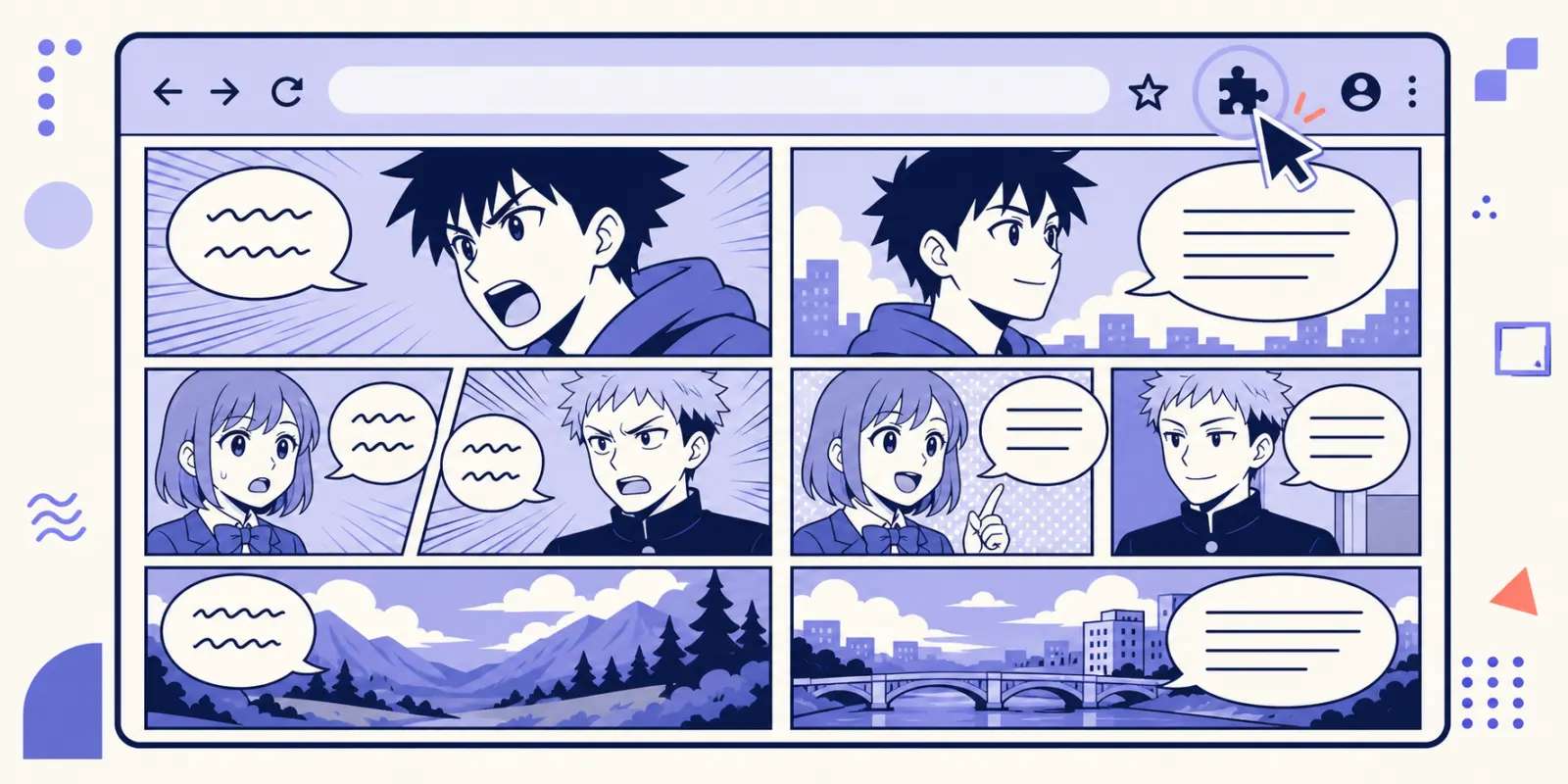
Why an extension instead of screenshot translation
The hardest part of following raw manga isn't the language — it's the workflow: screenshot a page, paste it into a translator, switch back, repeat for the next page. One or two panels is fine; a whole chapter kills the reading rhythm.
There's a second problem with screenshot translation that people notice less: a general-purpose translator gives you back a block of loose text. You get the words, but you lose which bubble said what, who was speaking, and the order the panels are meant to be read in. Manga carries a lot of meaning in layout, and a wall of extracted sentences throws that away.
A browser extension works differently. It translates right on the manga page you're already reading and renders the text back into the original speech bubbles, so the dialogue stays attached to the character who said it and you just keep scrolling. Here's how to set up Loomic in 3 steps, what it does under the hood, and — just as important — where it still falls short.
What the extension actually does to the page
"Translate the page" is doing a lot of work in that sentence. Loomic runs a short pipeline on each image:
- Detect the speech bubbles — find the regions on the page that contain dialogue, rather than treating the whole image as one block of text.
- Cover the original text — lay a fill over just the Japanese instead of pasting an opaque box across the whole bubble.
- Fill in the covered area — a background fill is generated to match the surrounding art, so screentone, gradients, and line art continue behind the new lettering.
- Match the font — pick lettering that reads like the original bubble rather than a default system font.
- Re-typeset — fit the translated line into the bubble's actual shape.
That is why the result looks like a page rather than a page with subtitles glued to it. It's also why manga translation is genuinely harder than translating a web page of plain text: the text is baked into the artwork, so the translation has to sit on top of it rather than replace it.
3 steps to start using Loomic
Step 1 — Install the extension
Install the Loomic extension from the Chrome Web Store. Chrome hides newly installed extensions behind the puzzle-piece icon in the toolbar by default, so pin Loomic there once — you'll want to reach it on every chapter.
Step 2 — Sign in and pick your language
Open the extension and sign in to your Loomic account. This is where your target language lives: Loomic supports 30+ languages, so it's worth setting yours before you start rather than mid-chapter. You can check the full list on the supported languages page.
Step 3 — Open a supported page and click translate
Open a chapter on a compatible manga site and click the Loomic translate button. The translation renders into the bubbles on the page you're looking at, and you keep scrolling.
That's it — no screenshots, no pasting into another tool, no jumping between tabs.
Which browsers are supported
The Loomic extension works on Chromium browsers, including Google Chrome, Microsoft Edge, and Brave. Because it is a browser extension, it lives on desktop browsers — there's no iOS version, and browsers built on a different engine aren't supported.
What gets saved (and what doesn't)
This trips people up, so it's worth being blunt: the extension shows translations live on the page and does not save them as separate translated image files. Translation happens in-page, and the content isn't stored.
If what you want is output files — a folder of translated pages you can keep — the extension is the wrong tool. Use the web upload tool at loomic.io for images you already have. Your uploads there are visible only to you and are intended for personal study or research.
How credits work
Loomic is credit-based, across Free, Lite, Plus, and Pro plans. Translating one image typically consumes 1 credit; a complex page — many bubbles, a lot of text, unusually large dimensions — can need more.
Practically, that means a chapter costs roughly its page count in credits, plus a little for the busy pages. The Free plan comes with credits, so the sensible way to evaluate any manga translator is to spend a few of them on the series you actually read rather than on a demo page someone else picked. See pricing for what each plan includes.
Where automatic translation still struggles
Manga layouts vary enormously, and naming the hard cases is more useful than pretending they don't exist. Expect weaker results on:
- Hand-drawn sound effects. Large stylized SFX are drawn as part of the artwork, often crossing panel borders and warping around figures. Handling them cleanly would mean redrawing the art underneath, and translating them often means picking an English onomatopoeia that doesn't exist.
- Text outside bubbles. Marginal notes, narration boxes tucked into corners, signs, handwritten asides squeezed next to a character's head — anything without a clean bubble boundary is harder to detect and harder to place.
- Dense pages. A page with a dozen small overlapping bubbles gives the typesetter very little room; long translations into a language that runs wider than Japanese have to shrink to fit.
- Heavy screentone and detailed backgrounds. Filling a flat white bubble is easy. Matching a screentone gradient or a crowd scene under the covered text is where artifacts show up.
- Unusual vertical-text layouts. Japanese runs top-to-bottom, right-to-left, and most dialogue follows that cleanly — but stylized, curved, or scattered vertical text is a genuinely hard reading-order problem.
- Low-resolution scans. Text recognition can only work with the pixels it's given. A small or heavily compressed image loses the fine strokes that distinguish similar characters.
None of this is unique to Loomic — it's where the whole category is today. We keep improving it, but you should expect a good automatic translation to be readable and fast, not indistinguishable from a professional localization.
If nothing happens: a short checklist
Before assuming something is broken, run through the obvious:
- Are you on a supported manga site? The extension only acts on sites it knows how to read.
- Are you signed in? Translation needs an account.
- Do you have credits left on your plan?
- Has the page finished loading? Many manga readers load images lazily as you scroll — the images have to exist before they can be translated.
- Is the browser Chromium-based, and is the extension enabled for that site?
Extension or upload tool — which one do you want?
Both exist because they solve different problems:
| Aspect | Chrome extension | Web upload tool |
|---|---|---|
| Where it runs | On the manga page you're reading | At loomic.io, on files you upload |
| Best for | Following a series as you read | Images you already have |
| Output | Rendered in-page, nothing saved | Translated result for your own use |
| Setup | Install once | No install |
If you're following an ongoing series on a compatible site, the extension is the smoother path. If you have your own images and you want something to keep, upload them.
Reading legally is part of the setup
Manga is copyrighted work, and the tool you read with doesn't change that. Use the extension on official, licensed platforms — Japanese publishers run free legal web services where a lot of series can be read on release day, and we list the main ones in Where to Read Raw Japanese Manga. Unlicensed aggregator sites are a different matter, legally and for your device's safety; we go through that in Are Raw Manga Sites Legal?.
For the upload tool, the same principle applies to your own files: they're for personal study or research, they stay visible only to you, and redistributing translated pages isn't something Loomic supports.
When you need more than an extension
Reading is one job; producing a localized edition is another. If you're working on manga professionally — a publisher, a licensed localization team, a studio delivering to a client — an in-page reading translation isn't the right deliverable. Loomic Studio is the separate product for that work: layered PSD export, a shared team glossary, two-pass human review, and commercial licensing.
For everyone else who just wants to read the next chapter without waiting, the extension is the whole setup.
FAQ
Which browsers does the Loomic extension work on?
Chromium-based browsers: Google Chrome, Microsoft Edge, and Brave. It's a desktop browser extension, so there's no iOS version and non-Chromium engines aren't supported.
Does it save translated pages as image files?
No. Translation happens in-page and nothing is saved as a translated file. For output you can keep, use the web upload tool at loomic.io on your own images.
How many credits does a chapter cost?
Roughly one credit per image, so roughly its page count — with extra for pages carrying an unusual amount of text or a very large number of bubbles.
Can I try it before paying?
Yes. The Free plan includes credits. Translate a few pages of the series you actually follow, then decide — that tells you more than any review, including this one.
Why did one page come out worse than the rest?
Almost always one of the hard cases above: hand-drawn sound effects, text outside a bubble, a very dense page, or a low-resolution image. Clean dialogue in a clean bubble is the easy case; everything else is a spectrum.